
Last week we heard all about the upcoming Motorola CLIQ Android device coming to T-Mobile USA and this week kicks off with some more Android phone news. LG announced the upcoming LG-GW620 that will be available in the fourth quarter of this year in Europe. This is LG’s first Android smarphone and follows on the heels of their Windows Mobile announcement stating that at least 13 new smartphones will be released over the next 16 months running the Windows Mobile OS.
Read More

Finnish mobile phone maker Nokia has been recently rumored to be on its way to come to the market with a new device that would run under Google's Android operating system, yet it seems that the company does not plan to make such a move. The only mobile operating system that is and will be on the company's chart is its Symbian platform.
Following a report from The Guardian, which cited industry insiders and stated that the world's largest handset maker planned on joining the general trend on the market and moving towards the Android platform, Nokia issued a statement earlier today and denied any connections between it and Google's mobile operating system.
“There is no truth to this story whatsoever,” the statement from the company reads. “It is a well known fact that Symbian is our platform of choice for smartphones.” According to The Guardian, said Nokia Android device was expected to surface as soon as September this year, being aimed at strengthening the company's position on the market, considering the fact that it has lost a lot of market share to its rivals lately.
Full story here
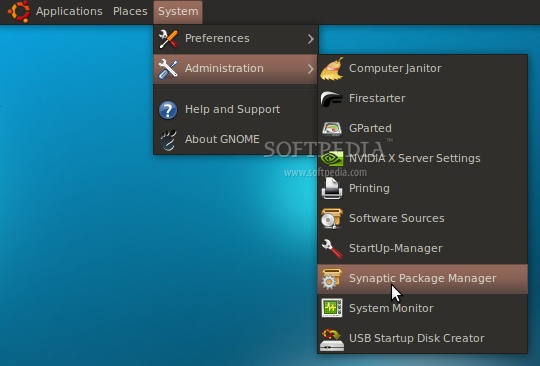
Grab the Android SDK 1.5 from Softpedia and save the file on your home folder. It has around 160 MB, so it will take a while if you have a slow network connection. Step 1 - Installing the requirements Until the download is over, make sure that you have Java installed and the 32-bit libraries (for the x86_64 users only). If you don't have Java and/or the 32-bit libs, go to System -> Administration -> Synaptic Package Manager...
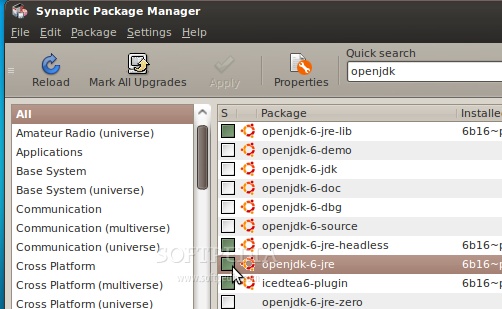
...search for openjdk and double-click on the openjdk-6-jre entry...
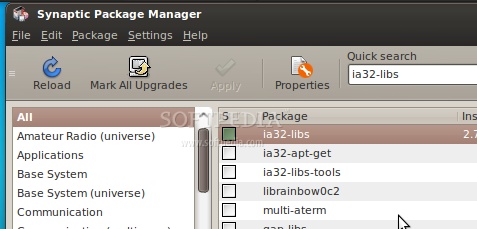
...then, search for ia32-libs (ONLY if you are on a x86_64 machine), and double-click on the ia32-libs entry...
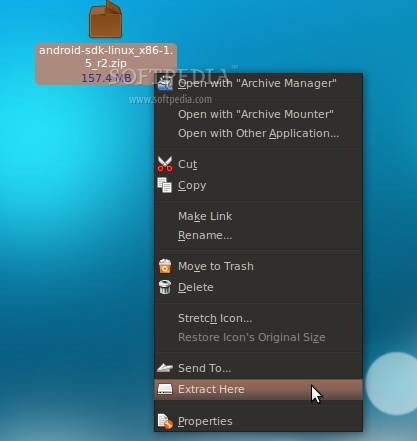
Now, click the "Apply" button to install the requirements. Wait for the packages to be installed and close Synaptic when the process is finished. Step 2 - Android Setup When the Android SDK download is over, right-click on the file and choose the "Extract Here..." option...
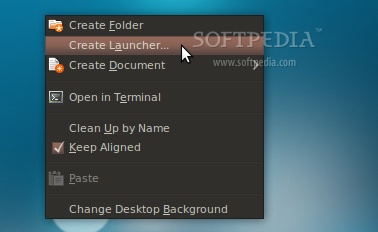
Open a terminal (Applications -> Accessories -> Terminal) and type or paste the following commands, one by one (hit Enter after each one): cd ~/android-sdk-linux_x86-1.5_r2/tools ...let's create a 2GB SD Card (I think 2GB is more than enough, but if you need more just change the size)... ./mksdcard 2048M SDCard1 ...wait a couple of minutes for the card-creation process to finish. And now, let's create the Android Virtual Device... ./android create avd -n softpedia -t 2 Hit Enter when asked if you wish to create a custom hardware profile, and you'll be immediately notified that the virtual device was created, for Android 1.5. Note: You can replace "softpedia" in the above command with whatever name you want to give to your Android device. If you want a virtual device for the Android 1.1 platform, replace 2 with 1, in the above command. The final step is to create a desktop shortcut, so you won't have to open the terminal every time and type some command, in order to start the Android emulator. Therefore, right-click on your desktop and choose the "Create Launcher..." option...
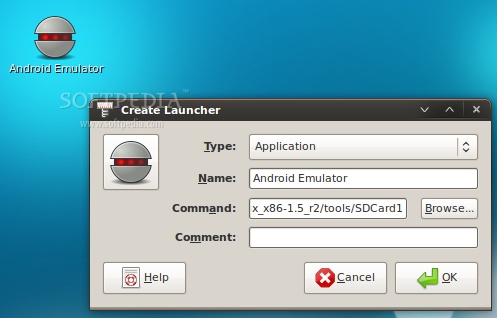
In the Create Launcher window, type "Android Emulator" (without quotes) in the Name field, and paste the following line in the Command field. Optionally, you can also put a nice icon if you click the button on the left... /home/YOURUSERNAME/android-sdk-linux_x86-1.5_r2/tools/emulator @softpedia -sdcard /home/YOURUSERNAME/android-sdk-linux_x86-1.5_r2/tools/SDCard1
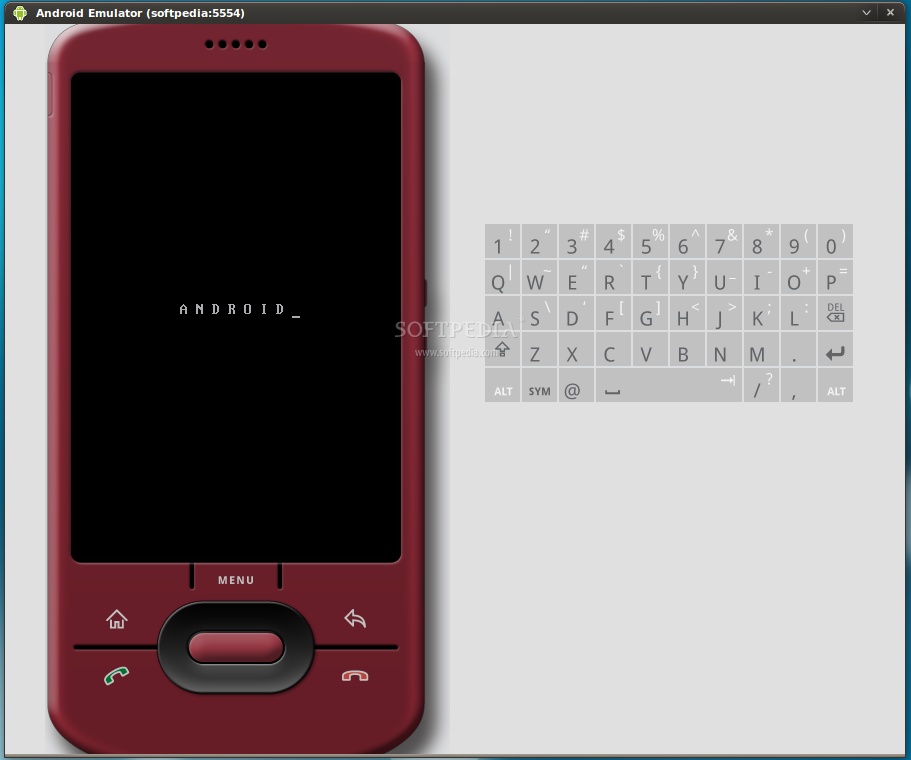
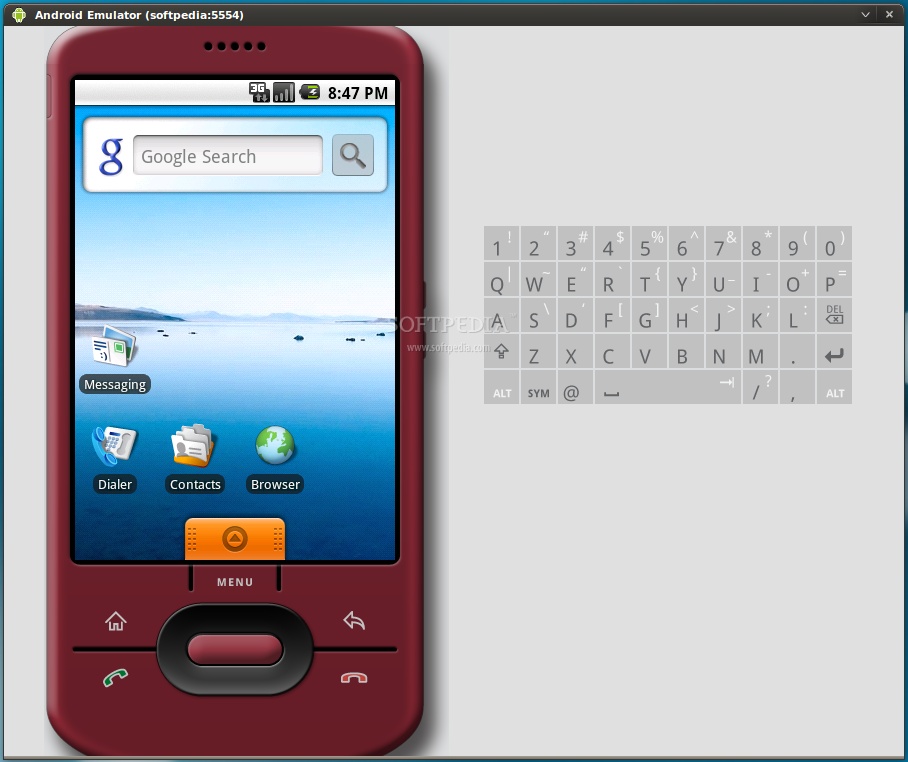
Note: Please replace YOURUSERNAME and the name of the Android Virtual Device (softpedia in our case) with yours. DO NOT REMOVE the @ sign. Step 3 - Run applications in Android All you have to do now is double-click that desktop shortcut you've just created. The Android emulator will start. Wait for the operating system to load...
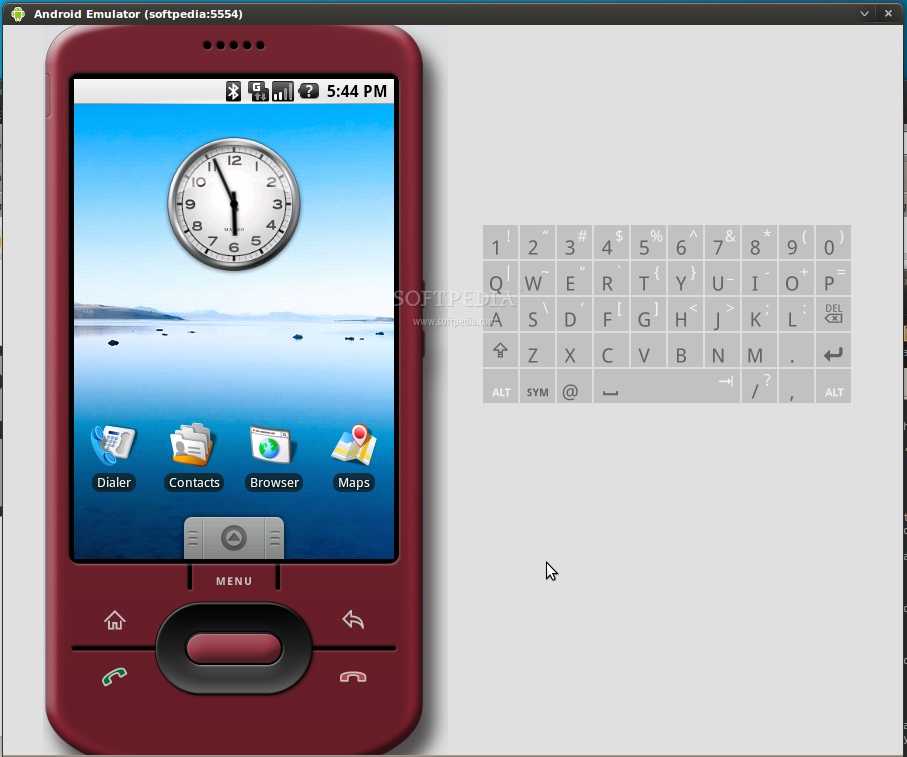
When the Android operating system has loaded, you can install and test applications. If you are used with the Android platform, you already know how to do that, but if this is your first time... follow the next instructions.
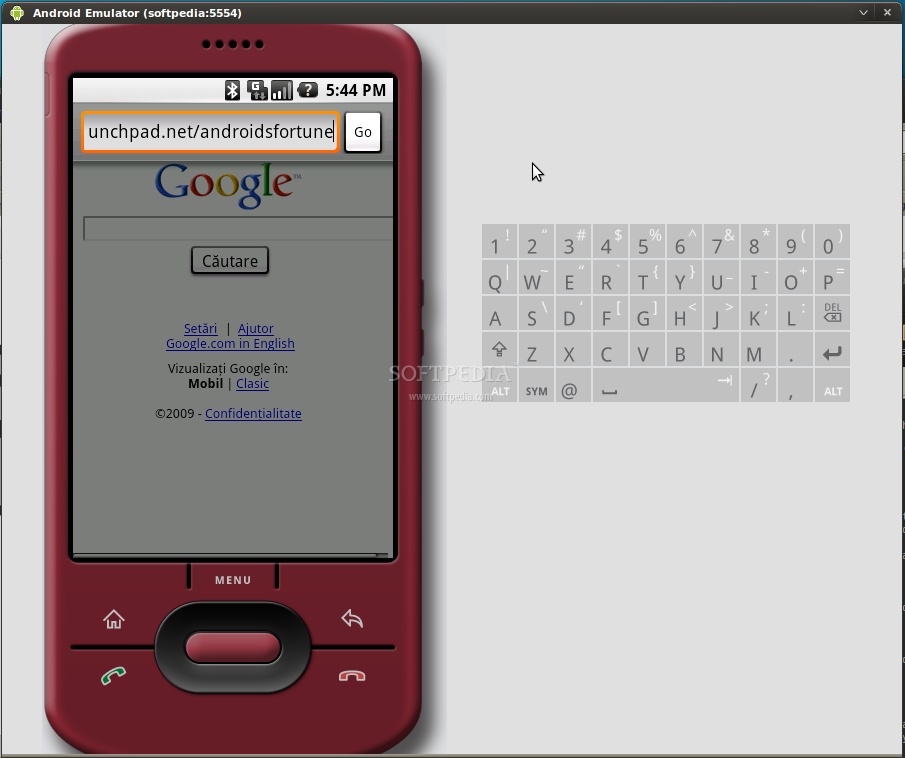
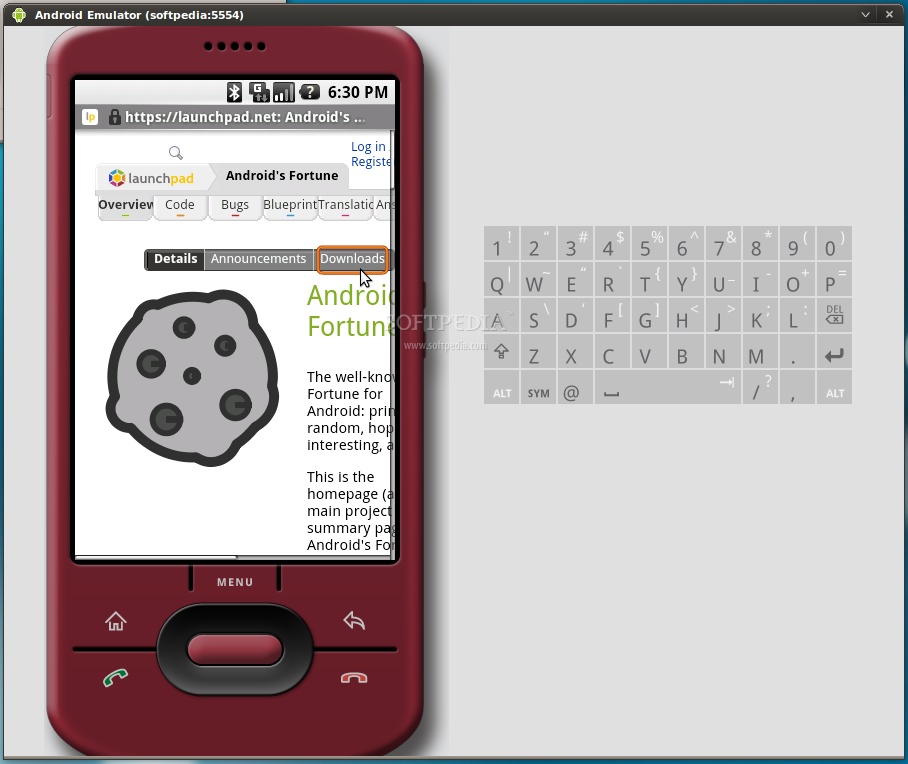
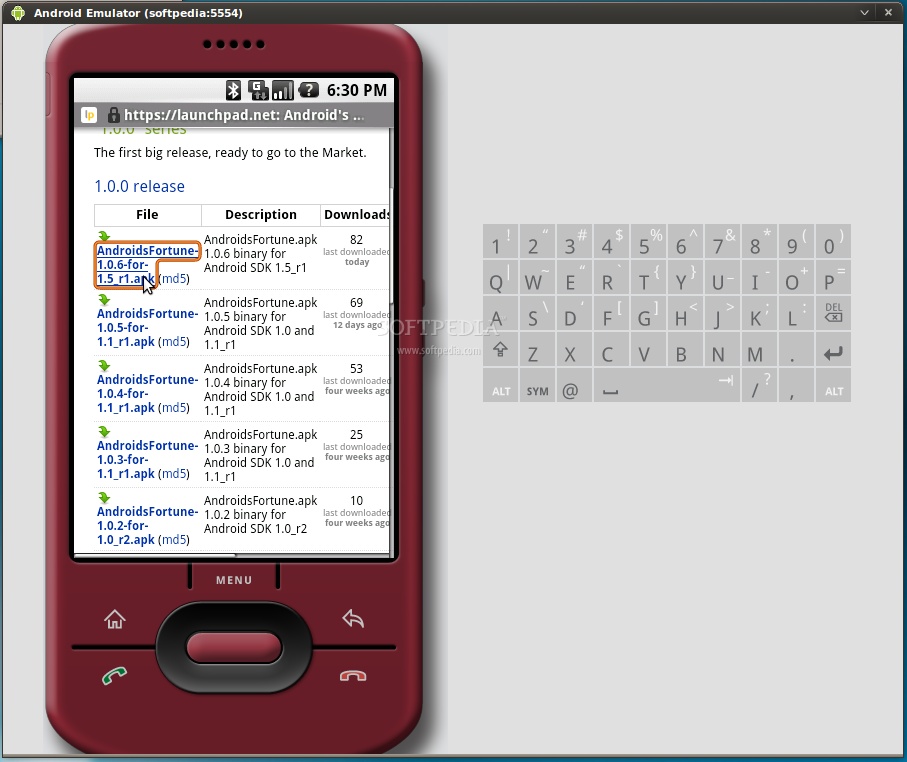
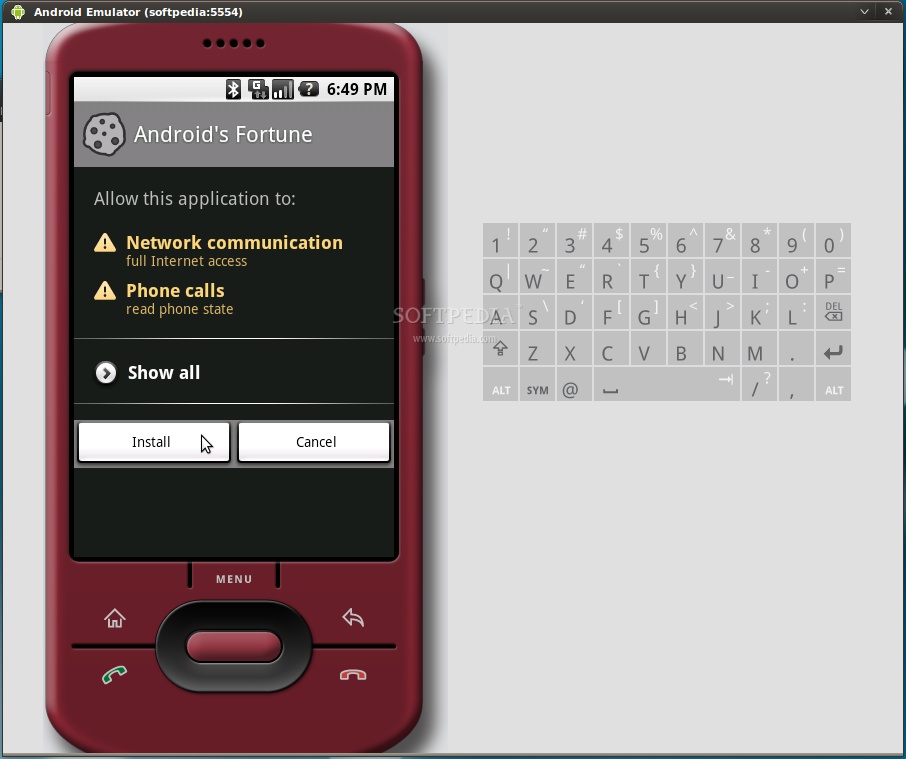
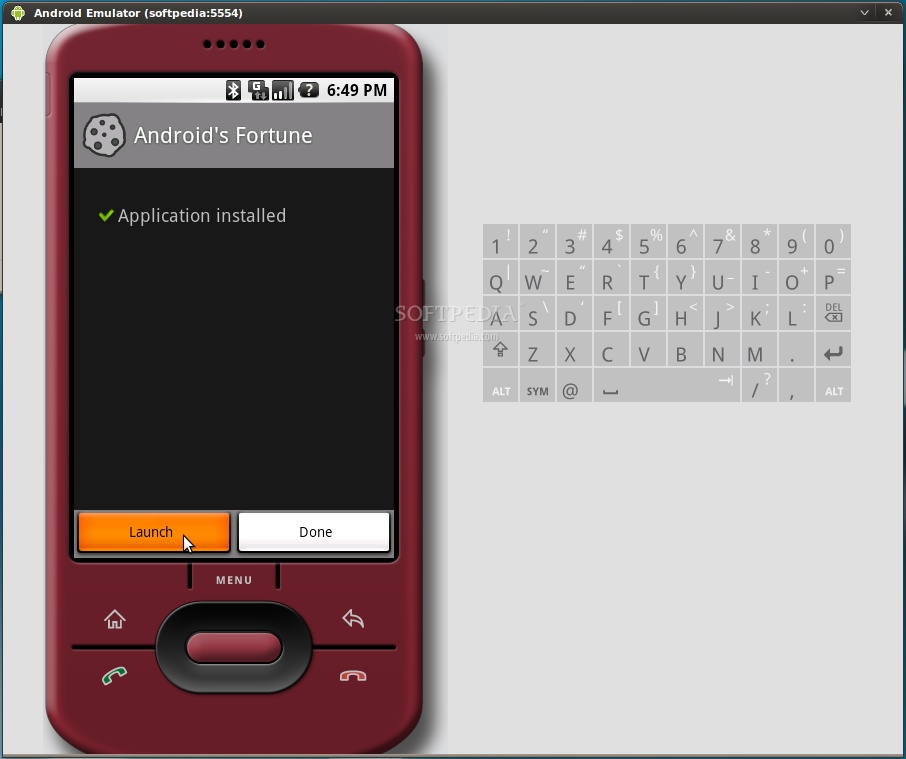
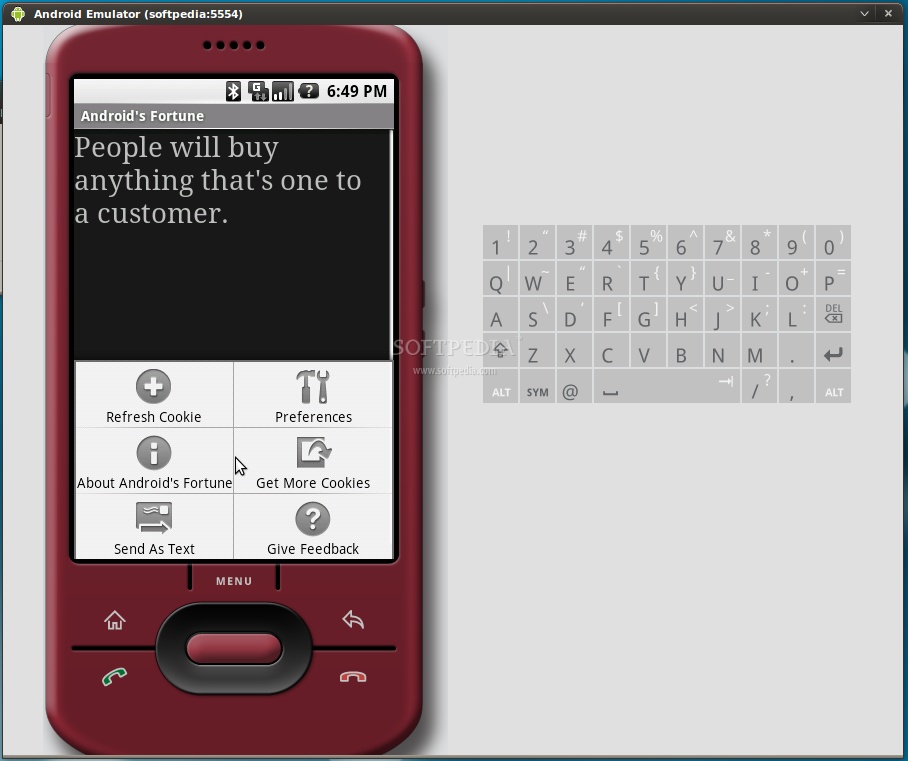
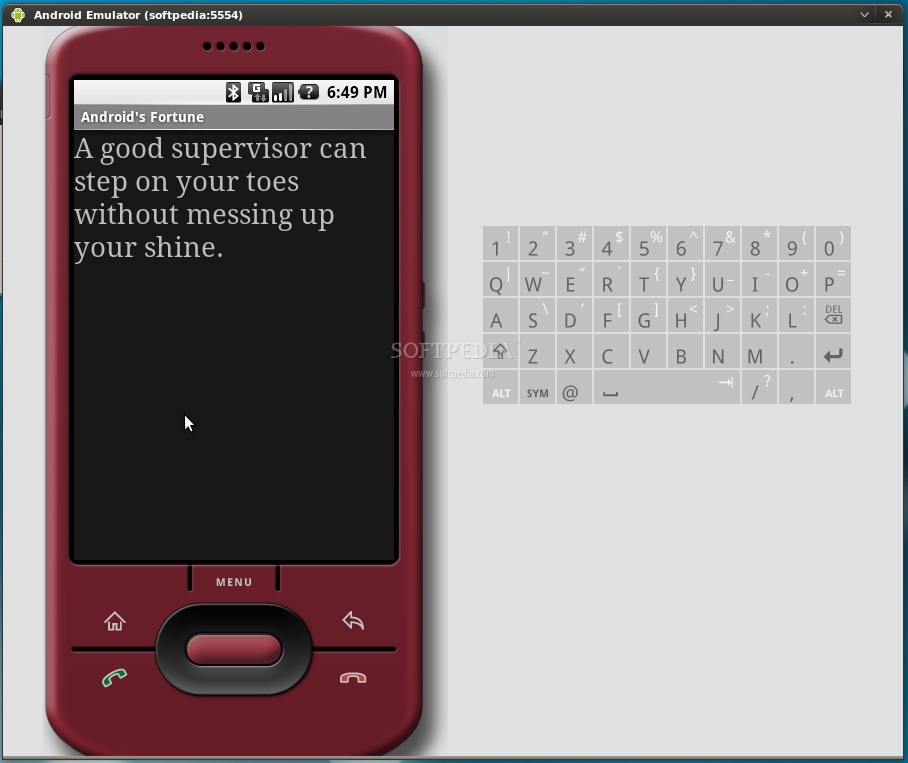
Click the Browser icon, wait for the browser to load and click Menu -> Go to URL. Enter the address from where you can download an Android application with the apk extension. For example, we've easily installed Android's Fortune from Launchpad...
...all you have to do is follow the on-screen instructions! Have fun, and do not hesitate to comment if you want to know more about Android, or if you're stuck somewhere in the tutorial. Read the full story at Softpedia | |||||||||||||||||||


 netbooks in most cases. Canonical already has a working prototype of the execution environment, and plans on making the necessary changes to the kernel in its next version of Ubuntu to give Android all the juice it needs at the core level and will open source the project soon. Things are still early, and there's a lot of work to do before this is going to really make the highly specialized Java-based Android apps actually usable on regular Linux -- they're currently working on granting Android access to the Ubuntu file system, for instance -- but we love where this is headed.